Uploads & hosting
Desktop App
Screenshots, drag & drop and clipboard uploads from Windows.
The desktop app puts your image host behind a hotkey. Capture a region, drop a file on the window, or upload straight from the clipboard — the link is on your clipboard when it finishes.
Downloading
Open Uploads — when a build is published for your platform, a download card sits at the top of the page with the current version. Windows 10 and newer. No card yet? Use ShareX in the meantime; it talks to the same storage.
Connecting it to your account
- Launch the app and choose to sign in.
- It shows an eight-character pairing code.
- Open the link it gives you, or go to Uploads → Link a device and type the code.
- Check the device, platform and IP on the confirmation screen, then press Connect.
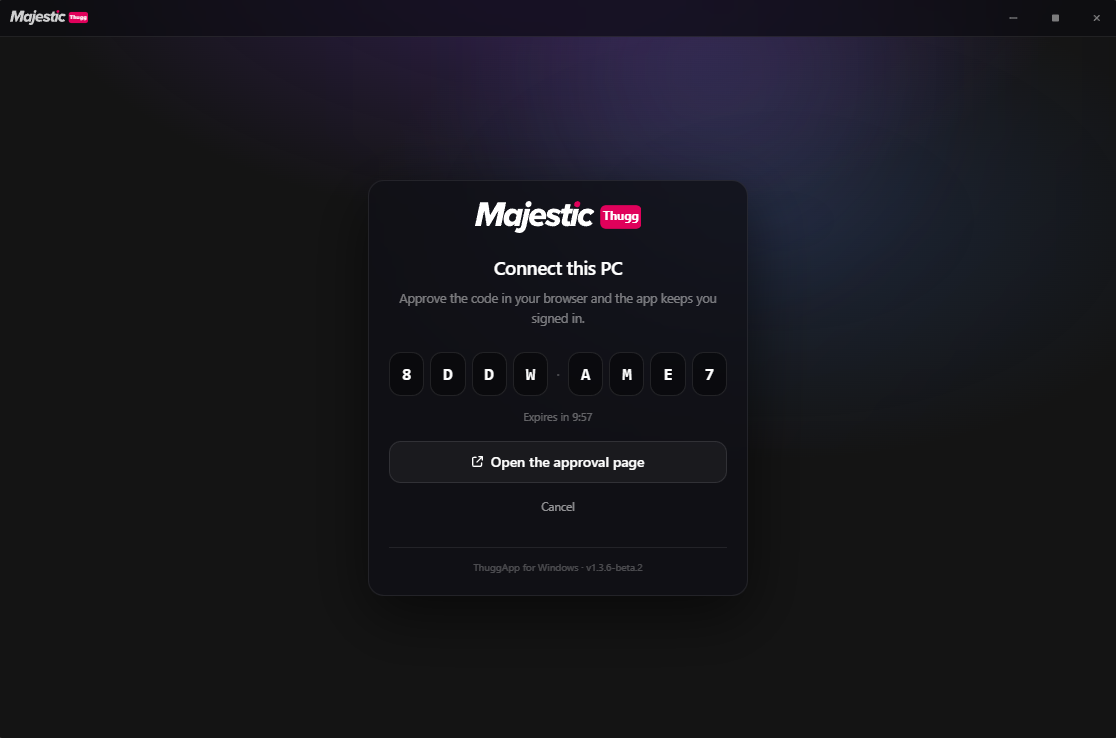
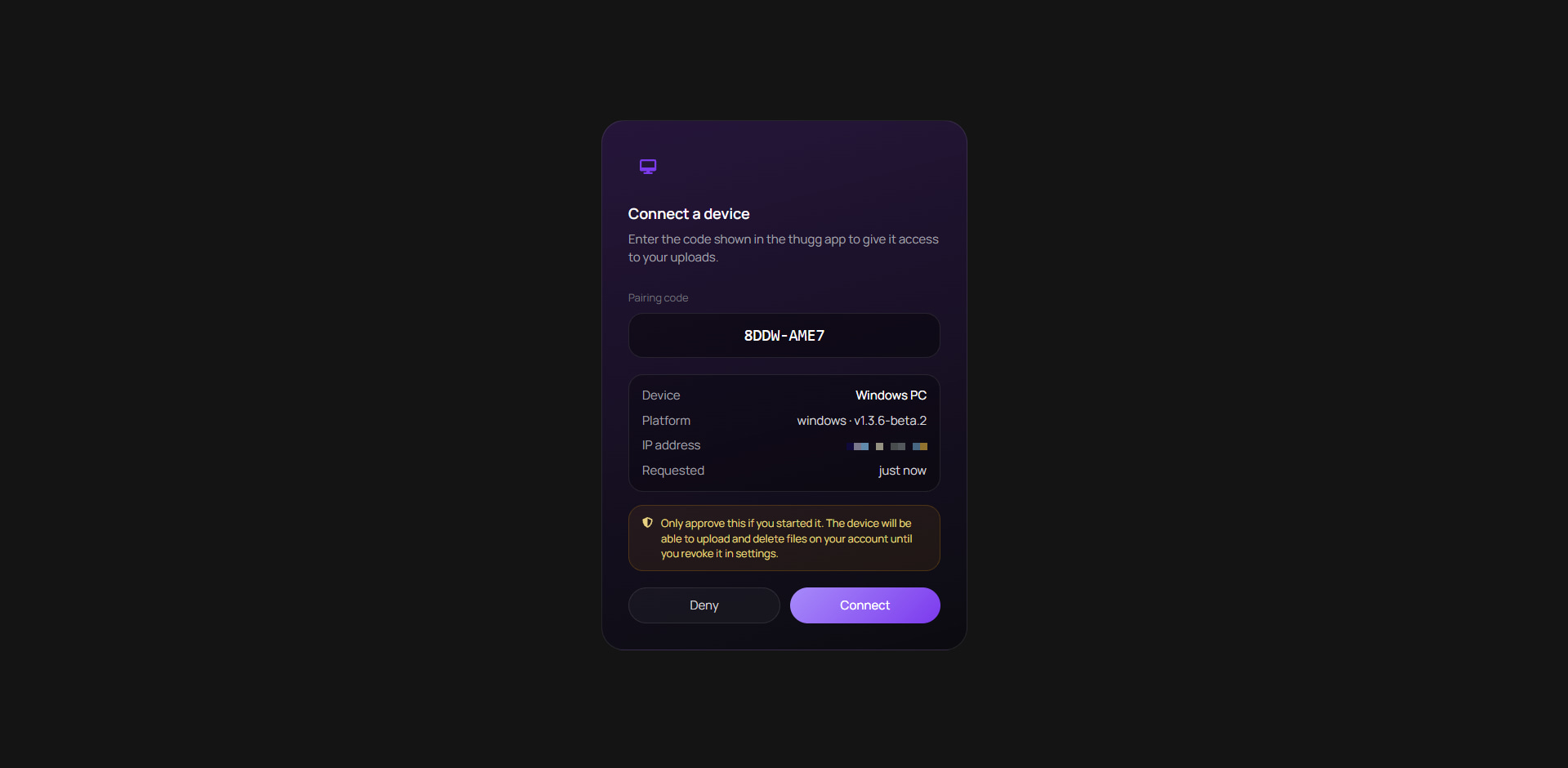
Only approve a code you started yourself. An approved device can upload and delete files on your account until you revoke it.
What it does
- Region screenshot on a hotkey, uploaded on release.
- Drag files from Explorer onto the app.
- Upload whatever is on your clipboard.
- Link copied automatically when the upload lands.
Updates
The app checks for updates itself and installs them in the background, so you stay on the current version without reinstalling.
Connected devices
Every app you connect — this one or ShareX — gets its own key, and Uploads → Settings → Connected devices is where you audit them. Each row shows the name, whether it is the desktop app or ShareX, and when it last uploaded.
- Rename a device with the pencil, handy once the app is on more than one machine.
- Revoke a key with the bin — it stops uploading the moment you confirm, no waiting for a session to expire.
- Revoke when you reinstall Windows, change machines, lose a laptop, or see a device you do not recognise.
Your files are safe
Revoking never touches files that device already uploaded — they stay in your grid with their links intact.
This did not solve it?
Open a ticket with Desktop App already attached, or ask in Discord where someone is usually awake.