Uploads & hosting
ShareX Setup
Point ShareX at your thugg.lol storage in two steps.
If you already use ShareX, you do not need our app. Import one config file and every capture goes to your storage.
Generate a key
- Open Uploads → Settings.
- Under ShareX, press Generate key.
- Copy it — the full key is only shown once.
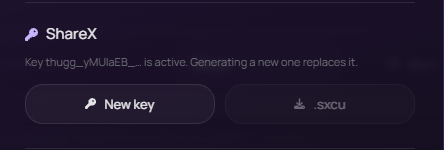
Generating a new key replaces the old one, and anything still using it stops uploading.
Import the config
- With the key still on screen, press .sxcu to download the config.
- Open the downloaded thugg.lol.sxcu file — ShareX imports it.
- ShareX asks to set it as the active uploader; accept.
Why the button is greyed out
The .sxcu button needs a freshly generated key, since the file has the key baked into it.
Check it works
Take any capture in ShareX. The upload appears in your Uploads grid and the i.thugg.lol link lands on your clipboard.
Which settings apply
Uploads from ShareX follow the same account settings as the website — default expiry, link length, hidden extensions, embeds and EXIF stripping.
This did not solve it?
Open a ticket with ShareX Setup already attached, or ask in Discord where someone is usually awake.